Entra ID Sharepoint or OneDrive Accessed by Unusual Client
Identifies when an application accesses SharePoint Online or OneDrive for Business for the first time in the tenant within a specified timeframe. This detects successful OAuth phishing campaigns, illicit consent grants, or compromised third-party applications gaining initial access to file storage. Adversaries often use malicious OAuth applications or phishing techniques to gain consent from users, allowing persistent access to organizational data repositories without traditional credential theft.
Elastic rule (View on GitHub)
  1[metadata]
  2creation_date = "2025/05/01"
  3integration = ["azure"]
  4maturity = "production"
  5updated_date = "2026/09/18"
  6
  7[rule]
  8author = ["Elastic"]
  9description = """
 10Identifies when an application accesses SharePoint Online or OneDrive for Business for the first time in the tenant within a specified timeframe.
 11This detects successful OAuth phishing campaigns, illicit consent grants, or compromised third-party applications
 12gaining initial access to file storage. Adversaries often use malicious OAuth applications or phishing techniques to
 13gain consent from users, allowing persistent access to organizational data repositories without traditional credential
 14theft.
 15"""
 16false_positives = [
 17    """
 18    New legitimate applications or integrations recently deployed in the environment may trigger this detection during
 19    initial setup or rollout phases.
 20    """,
 21    """
 22    Third-party SaaS applications with SharePoint integration may appear as new app IDs when users first authorize
 23    access.
 24    """,
 25    """
 26    Developers testing new applications or OAuth flows in non-production tenants may generate alerts during development
 27    cycles.
 28    """,
 29]
 30from = "now-9m"
 31index = ["logs-azure.signinlogs-*"]
 32language = "kuery"
 33license = "Elastic License v2"
 34name = "Entra ID Sharepoint or OneDrive Accessed by Unusual Client"
 35note = """## Triage and analysis
 36
 37### Investigating Entra ID Sharepoint or OneDrive Accessed by Unusual Client
 38
 39This rule identifies when an application accesses SharePoint Online or OneDrive for Business for the first time in the tenant. This is a critical signal for detecting successful OAuth phishing campaigns, where adversaries trick users into granting consent to malicious applications. Once consent is granted, the malicious app can persistently access file storage without further user interaction. This detection also catches illicit consent grants, compromised third-party applications, or custom malicious apps registered by adversaries.
 40
 41### Possible Investigation Steps:
 42
 43- Identify the Application: Review `azure.signinlogs.properties.app_id` and `azure.signinlogs.properties.app_display_name` to determine which application accessed SharePoint. Cross-reference with known legitimate applications in your environment.
 44- Check Application Registration: Search Entra ID app registrations for the app ID. Determine if it's a first-party Microsoft app, known third-party integration, or suspicious/unknown application.
 45- Review Consent History: Investigate when and how consent was granted. Check `azure.auditlogs` for recent `Consent to application` events matching this app ID. Identify which user granted consent and whether it was admin or user consent.
 46- Analyze Permissions Granted: Review the OAuth scopes and permissions granted to the application. Look for overly broad permissions (e.g., `Files.ReadWrite.All`, `Sites.ReadWrite.All`) that exceed business requirements.
 47- Correlate with User Activity: Check if the user who granted consent recently received phishing emails, clicked suspicious links, or reported potential phishing attempts.
 48- Inspect Source IP and Location: Review `source.ip` and `source.geo.*` fields. Determine if the sign-in originated from expected locations or suspicious infrastructure (VPNs, data centers, anonymizers).
 49- Review Application Publisher: Check if the application is verified by Microsoft or has a suspicious/generic publisher name. Unverified applications with generic names (e.g., "File Viewer", "Document Manager") are common in phishing.
 50- Check for Data Access: Review subsequent SharePoint audit logs to see what files/sites the application accessed after gaining consent.
 51- Conditional Access Evaluation: Review `azure.signinlogs.properties.applied_conditional_access_policies` to determine if any security controls were bypassed or if the application should have been blocked.
 52
 53### False Positive Analysis
 54
 55- New Legitimate Integrations: Newly deployed third-party SaaS applications (e.g., document management, collaboration tools) that integrate with SharePoint will trigger this detection during initial setup. Validate with IT/procurement teams.
 56- Microsoft First-Party Applications: This rule excludes known SharePoint, OneDrive, Outlook Web, and Teams web or service clients that commonly access SharePoint. It also excludes service-principal sign-ins when the application is owned by Microsoft's tenant. User sign-ins from reusable first-party clients such as Outlook Mobile, Microsoft Teams, and Microsoft Office remain detectable because adversaries can abuse these clients in OAuth phishing.
 57- Development/Testing: Developers testing OAuth flows or building internal applications may generate alerts in development or staging environments.
 58- Organizational Changes: Mergers, acquisitions, or tenant migrations may introduce legitimate applications from partner organizations accessing SharePoint for the first time.
 59
 60### Response and Remediation
 61
 62- Immediate Actions if Malicious:
 63  - Revoke consent for the malicious application immediately via Entra ID > Enterprise Applications
 64  - Revoke all active sessions and refresh tokens for affected users
 65  - Disable the application's service principal to prevent further access
 66  - Review and remediate any data accessed by the application using SharePoint audit logs
 67- User Notification: Contact users who granted consent to inform them of the phishing attempt and provide security awareness training on identifying malicious OAuth consent requests
 68- Conditional Access Hardening: Implement or strengthen Conditional Access policies to:
 69  - Require admin consent for high-risk permissions (Files.ReadWrite.All, Sites.ReadWrite.All)
 70  - Block unverified publishers from accessing sensitive resources
 71  - Enforce device compliance and MFA for application access
 72- Tenant-Wide Review: Audit all application consents across the tenant to identify other potentially malicious applications that may have gained access through similar campaigns
 73- Monitor for Campaign Patterns: Check if the same malicious application targeted multiple users, indicating an organized phishing campaign. Coordinate with email security teams to identify and block phishing emails used in the campaign.
 74
 75"""
 76references = [
 77    "https://www.volexity.com/blog/2025/04/22/phishing-for-codes-russian-threat-actors-target-microsoft-365-oauth-workflows/",
 78    "https://www.microsoft.com/en-us/security/blog/2022/09/22/malicious-oauth-applications-used-to-compromise-email-servers-and-spread-spam/",
 79    "https://learn.microsoft.com/en-us/entra/identity/enterprise-apps/manage-consent-requests",
 80    "https://github.com/merill/microsoft-info/blob/main/_info/MicrosoftApps.json",
 81]
 82risk_score = 47
 83rule_id = "a3cc60d8-2701-11f0-accf-f661ea17fbcd"
 84setup = """#### Required Microsoft Entra ID Sign-In Logs
 85To use this rule, ensure that Microsoft Entra ID Sign-In Logs are being collected and streamed into the Elastic Stack via the Azure integration.
 86"""
 87severity = "medium"
 88tags = [
 89    "Domain: Cloud",
 90    "Domain: Identity",
 91    "Domain: Storage",
 92    "Use Case: Identity and Access Audit",
 93    "Tactic: Collection",
 94    "Tactic: Initial Access",
 95    "Data Source: Azure",
 96    "Data Source: Microsoft Entra ID",
 97    "Data Source: Microsoft Entra ID Sign-In Logs",
 98    "Resources: Investigation Guide",
 99    "Rule Type: New Terms",
100    "Noise: Medium",
101    "Performance: Fast",
102    "Platform: Entra ID",
103    "Platform: Azure",
104    "Service: Microsoft SharePoint",
105    "Service: Microsoft OneDrive",
106]
107timestamp_override = "event.ingested"
108type = "new_terms"
109
110query = '''
111data_stream.dataset:azure.signinlogs and
112azure.signinlogs.properties.resource_id:(
113    00000003-0000-0ff1-ce00-000000000000 or
114    6a9b9266-8161-4a7b-913a-a9eda19da220
115) and
116azure.signinlogs.properties.app_id:(* and not (
117    00000003-0000-0ff1-ce00-000000000000 or
118    08e18876-6177-487e-b8b5-cf950c1e598c or
119    5e3ce6c0-2b1f-4285-8d4b-75ee78787346 or
120    9199bf20-a13f-4107-85dc-02114787ef48 or
121    ab9b8c07-8f02-4f72-87fa-80105867a763 or
122    af124e86-4e96-495a-b70a-90f90ab96707 or
123    cc15fd57-2c6c-4117-a88c-83b1d56b4bbe
124)) and
125not (
126    azure.signinlogs.properties.app_owner_tenant_id:f8cdef31-a31e-4b4a-93e4-5f571e91255a and
127    azure.signinlogs.category:MicrosoftServicePrincipalSignInLogs
128) and
129azure.signinlogs.properties.tenant_id:* and
130event.outcome:success
131'''
132
133[[rule.threat]]
134framework = "MITRE ATT&CK"
135
136[[rule.threat.technique]]
137id = "T1213"
138name = "Data from Information Repositories"
139reference = "https://attack.mitre.org/techniques/T1213/"
140
141[[rule.threat.technique.subtechnique]]
142id = "T1213.002"
143name = "Sharepoint"
144reference = "https://attack.mitre.org/techniques/T1213/002/"
145
146[rule.threat.tactic]
147id = "TA0009"
148name = "Collection"
149reference = "https://attack.mitre.org/tactics/TA0009/"
150
151[[rule.threat]]
152framework = "MITRE ATT&CK"
153
154[[rule.threat.technique]]
155id = "T1078"
156name = "Valid Accounts"
157reference = "https://attack.mitre.org/techniques/T1078/"
158
159[[rule.threat.technique.subtechnique]]
160id = "T1078.004"
161name = "Cloud Accounts"
162reference = "https://attack.mitre.org/techniques/T1078/004/"
163
164[[rule.threat.technique]]
165id = "T1566"
166name = "Phishing"
167reference = "https://attack.mitre.org/techniques/T1566/"
168
169[rule.threat.tactic]
170id = "TA0001"
171name = "Initial Access"
172reference = "https://attack.mitre.org/tactics/TA0001/"
173
174[[rule.threat]]
175framework = "MITRE ATT&CK"
176
177[[rule.threat.technique]]
178id = "T1098"
179name = "Account Manipulation"
180reference = "https://attack.mitre.org/techniques/T1098/"
181
182[[rule.threat.technique.subtechnique]]
183id = "T1098.001"
184name = "Additional Cloud Credentials"
185reference = "https://attack.mitre.org/techniques/T1098/001/"
186
187[rule.threat.tactic]
188id = "TA0003"
189name = "Persistence"
190reference = "https://attack.mitre.org/tactics/TA0003/"
191[rule.new_terms]
192field = "new_terms_fields"
193value = ["azure.signinlogs.properties.app_id", "azure.signinlogs.properties.tenant_id"]
194[[rule.new_terms.history_window_start]]
195field = "history_window_start"
196value = "now-7d"
Triage and analysis
Investigating Entra ID Sharepoint or OneDrive Accessed by Unusual Client
This rule identifies when an application accesses SharePoint Online or OneDrive for Business for the first time in the tenant. This is a critical signal for detecting successful OAuth phishing campaigns, where adversaries trick users into granting consent to malicious applications. Once consent is granted, the malicious app can persistently access file storage without further user interaction. This detection also catches illicit consent grants, compromised third-party applications, or custom malicious apps registered by adversaries.
Possible Investigation Steps:
- Identify the Application: Review
azure.signinlogs.properties.app_idandazure.signinlogs.properties.app_display_nameto determine which application accessed SharePoint. Cross-reference with known legitimate applications in your environment. - Check Application Registration: Search Entra ID app registrations for the app ID. Determine if it's a first-party Microsoft app, known third-party integration, or suspicious/unknown application.
- Review Consent History: Investigate when and how consent was granted. Check
azure.auditlogsfor recentConsent to applicationevents matching this app ID. Identify which user granted consent and whether it was admin or user consent. - Analyze Permissions Granted: Review the OAuth scopes and permissions granted to the application. Look for overly broad permissions (e.g.,
Files.ReadWrite.All,Sites.ReadWrite.All) that exceed business requirements. - Correlate with User Activity: Check if the user who granted consent recently received phishing emails, clicked suspicious links, or reported potential phishing attempts.
- Inspect Source IP and Location: Review
source.ipandsource.geo.*fields. Determine if the sign-in originated from expected locations or suspicious infrastructure (VPNs, data centers, anonymizers). - Review Application Publisher: Check if the application is verified by Microsoft or has a suspicious/generic publisher name. Unverified applications with generic names (e.g., "File Viewer", "Document Manager") are common in phishing.
- Check for Data Access: Review subsequent SharePoint audit logs to see what files/sites the application accessed after gaining consent.
- Conditional Access Evaluation: Review
azure.signinlogs.properties.applied_conditional_access_policiesto determine if any security controls were bypassed or if the application should have been blocked.
False Positive Analysis
- New Legitimate Integrations: Newly deployed third-party SaaS applications (e.g., document management, collaboration tools) that integrate with SharePoint will trigger this detection during initial setup. Validate with IT/procurement teams.
- Microsoft First-Party Applications: This rule excludes known SharePoint, OneDrive, Outlook Web, and Teams web or service clients that commonly access SharePoint. It also excludes service-principal sign-ins when the application is owned by Microsoft's tenant. User sign-ins from reusable first-party clients such as Outlook Mobile, Microsoft Teams, and Microsoft Office remain detectable because adversaries can abuse these clients in OAuth phishing.
- Development/Testing: Developers testing OAuth flows or building internal applications may generate alerts in development or staging environments.
- Organizational Changes: Mergers, acquisitions, or tenant migrations may introduce legitimate applications from partner organizations accessing SharePoint for the first time.
Response and Remediation
- Immediate Actions if Malicious:
- Revoke consent for the malicious application immediately via Entra ID > Enterprise Applications
- Revoke all active sessions and refresh tokens for affected users
- Disable the application's service principal to prevent further access
- Review and remediate any data accessed by the application using SharePoint audit logs
- User Notification: Contact users who granted consent to inform them of the phishing attempt and provide security awareness training on identifying malicious OAuth consent requests
- Conditional Access Hardening: Implement or strengthen Conditional Access policies to:
- Require admin consent for high-risk permissions (Files.ReadWrite.All, Sites.ReadWrite.All)
- Block unverified publishers from accessing sensitive resources
- Enforce device compliance and MFA for application access
- Tenant-Wide Review: Audit all application consents across the tenant to identify other potentially malicious applications that may have gained access through similar campaigns
- Monitor for Campaign Patterns: Check if the same malicious application targeted multiple users, indicating an organized phishing campaign. Coordinate with email security teams to identify and block phishing emails used in the campaign.
References
-

Since early March 2025, Volexity has observed multiple suspected Russian threat actors conducting highly targeted social engineering operations aimed at gaining access to the Microsoft 365 (M365) accounts of targeted individuals. This activity comes on the heels of attacks Volexity reported on back in February 2025, where Russian threat actors were discovered targeting users and organizations through Device Code Authentication phishing...
Read More -
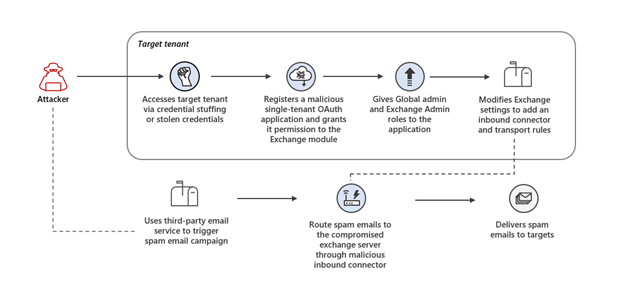
Microsoft discovered an attack where attackers installed a malicious OAuth application in compromised tenants and used their Exchange Online service to launch spam runs.
Read More -

Understand consent request evaluation and tenant-wide admin consent in Microsoft Entra ID. Essential guidance for administrators managing application permissions and security.
Read More -
Repository hosting a static list of Microsoft First party apps and Graph permissions that's updated daily - merill/microsoft-info
Read More
Related rules
- Entra ID OAuth Device Code Grant by Unusual User
- Entra ID OAuth ROPC Grant Login Detected
- Entra ID Service Principal Federated Credential Authentication by Unusual Client
- Entra ID User Sign-in with Unusual Authentication Type
- Azure AD Graph Access with Unusual User and ASN